


Fill in the Blanks
Tasks
The Fill in the Blanks Task lets participants complete a sentence, phrase, or passage by entering text into blanks you set up in advance. It works well for checking understanding, reinforcing key information, or turning a simple prompt into something a little more interactive. You can choose where each blank appears and what participants need to type in. Fill in the Blanks Tasks are especially useful for learning activities, orientation content, knowledge checks, clues, and guided reflection.
How to Create Fill in the Blanks Tasks
Step 1: Use the Web App on desktop for the best experience.
Step 2: Click on the "Create Event" button to begin

Step 3: Enter the Manage Tasks page.
Click + Task to initiate.
Choose Fill In The Blanks as the task submission type.
In the Task Prompt, add a title to your task (e.g., “Complete the sentence based on today’s session” or "Fill in the missing details about your university").
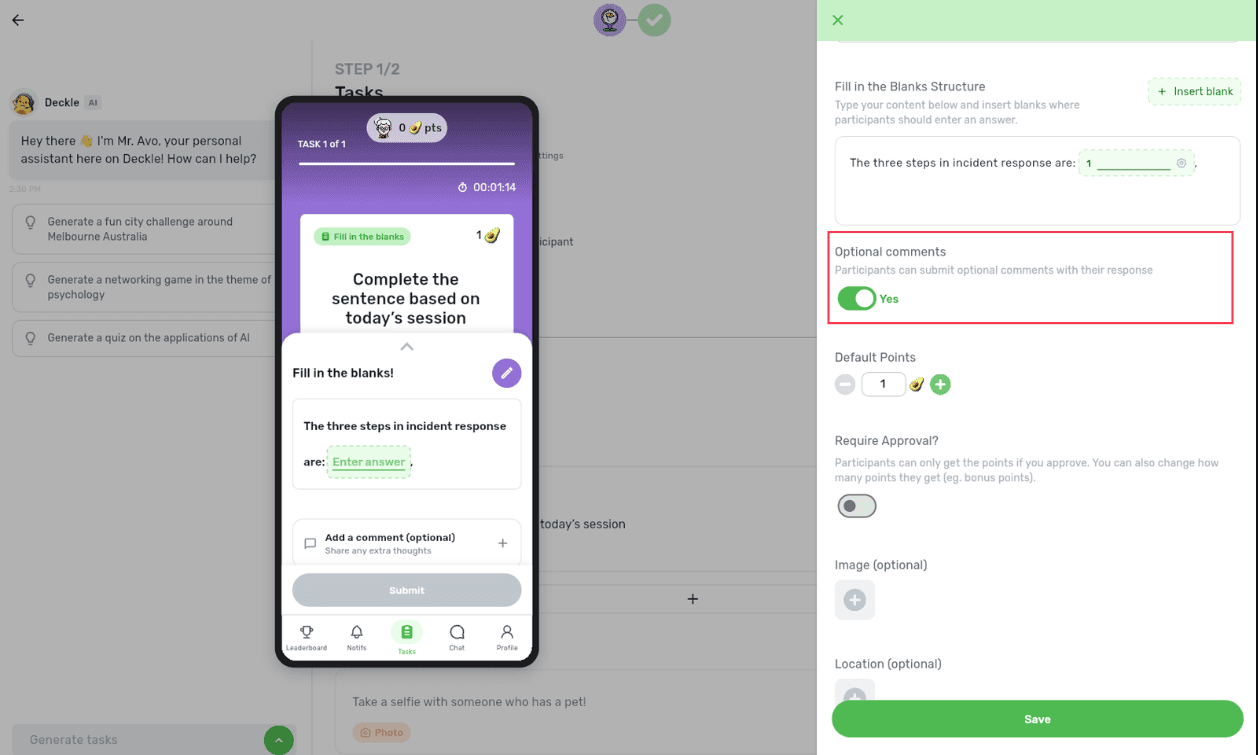
Type your content, then click + Insert Blank wherever you want participants to enter a response. Each blank you add becomes a field they can fill in.
Click "Done" to save and add the task to your event!

Step 4: More customisations!
If you’d like to hear more from participants, turn Optional comments on so they can add extra context to their submission.
Examples to inspire you!
Here are some examples to show you the main advantage of Fill in the Blanks over a normal Text Task: you can still collect flexible responses, while guiding participants toward the format or information you need.
🧠 Complete the Training Takeaway
Prompt: Complete the sentence based on today’s session.
Example:
“The three steps in our incident response process are [____], [____], and [____].”
Tips:
Add multiple blanks to guide participants toward the exact pieces of information you want
Use the finish page to point them back to a slide, handbook, or training resource
🎓 Orientation Knowledge Check
Prompt: Fill in the missing details about your university.
Example:
“The student services desk is located in [____], and it is open from [____] to [____].”
Tips:
Use several blanks in one sentence instead of asking separate text questions
Add a task image with a map, sign, or clue
Use GPS if participants need to visit the location to find the answer
🤝 Team Reflection
Prompt: Complete the sentence about your group’s experience.
Example:
“Our team’s biggest strength today was [____], and one thing we want to improve is [____].”
Tips:
Use blanks to give open-ended responses some structure
Add optional captions or descriptions for extra context
Use the task after a workshop, team-building activity, or group challenge
